Sharing Content in a Video Call | WEB
Once a call has been connected, the expert will see the following screen with options on the right side pop-out and full screen. Hang up, Share and Capture buttons on the top right and a content tray along the bottom.
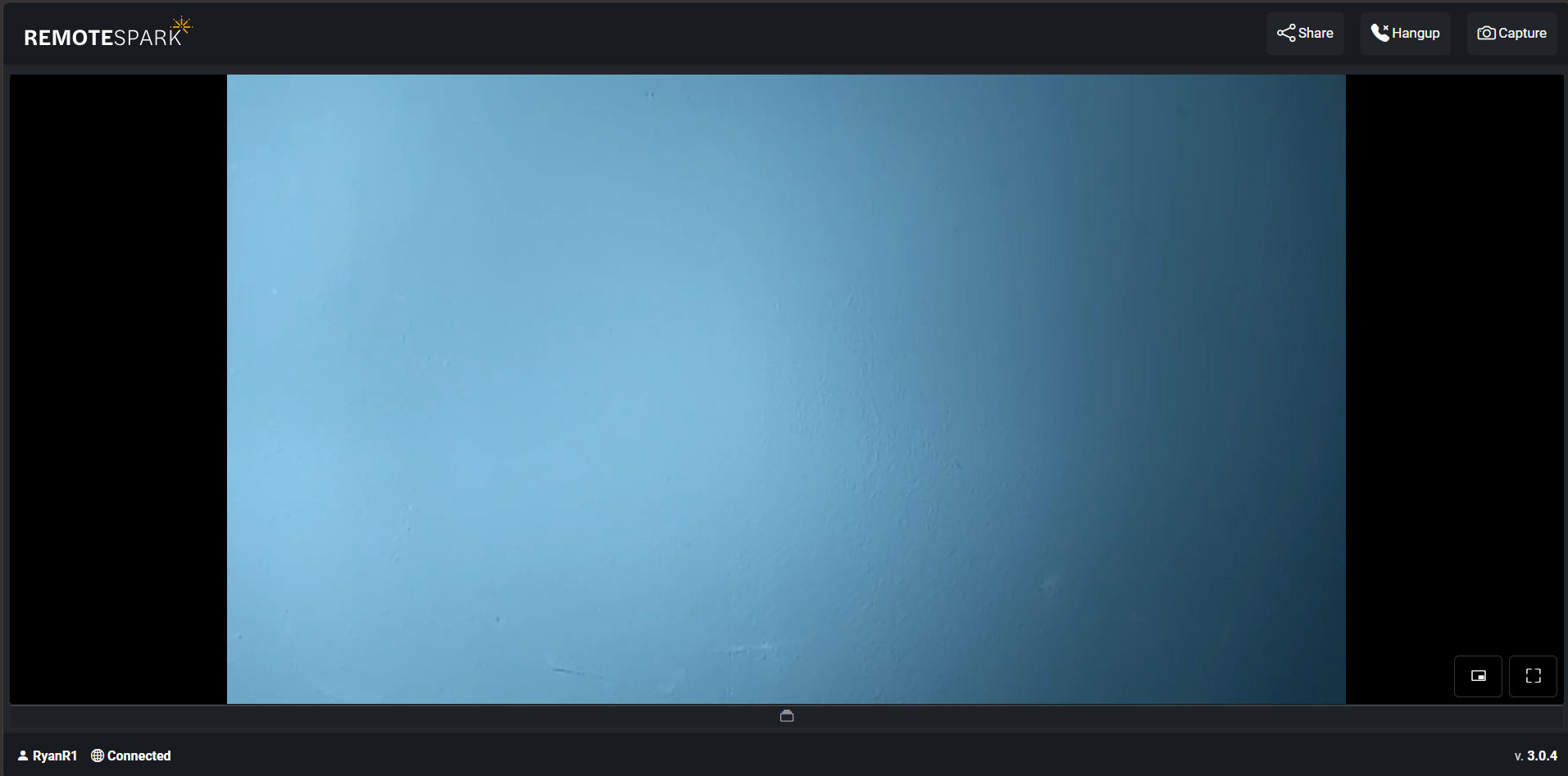
Expert users can upload various assets to the remote user anytime by selecting Files. The accepted file types that can be uploaded are .jpg, .pdf and zipped glb files to the 3D capable headsets. To add content to the call, select the Share button.
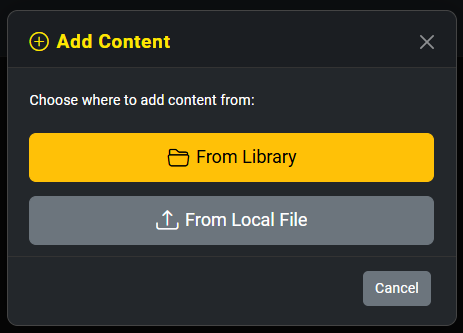
Once selected a pop-up will appear with two options. “From Library” this option allows the expert user to send content from the various libraries, such as Personal, Org or Common. “From Local File” this allows the expert user to upload any file from the PC they wish to send to the remote user.
Was this article helpful?
That’s Great!
Thank you for your feedback
Sorry! We couldn't be helpful
Thank you for your feedback
Feedback sent
We appreciate your effort and will try to fix the article