 | 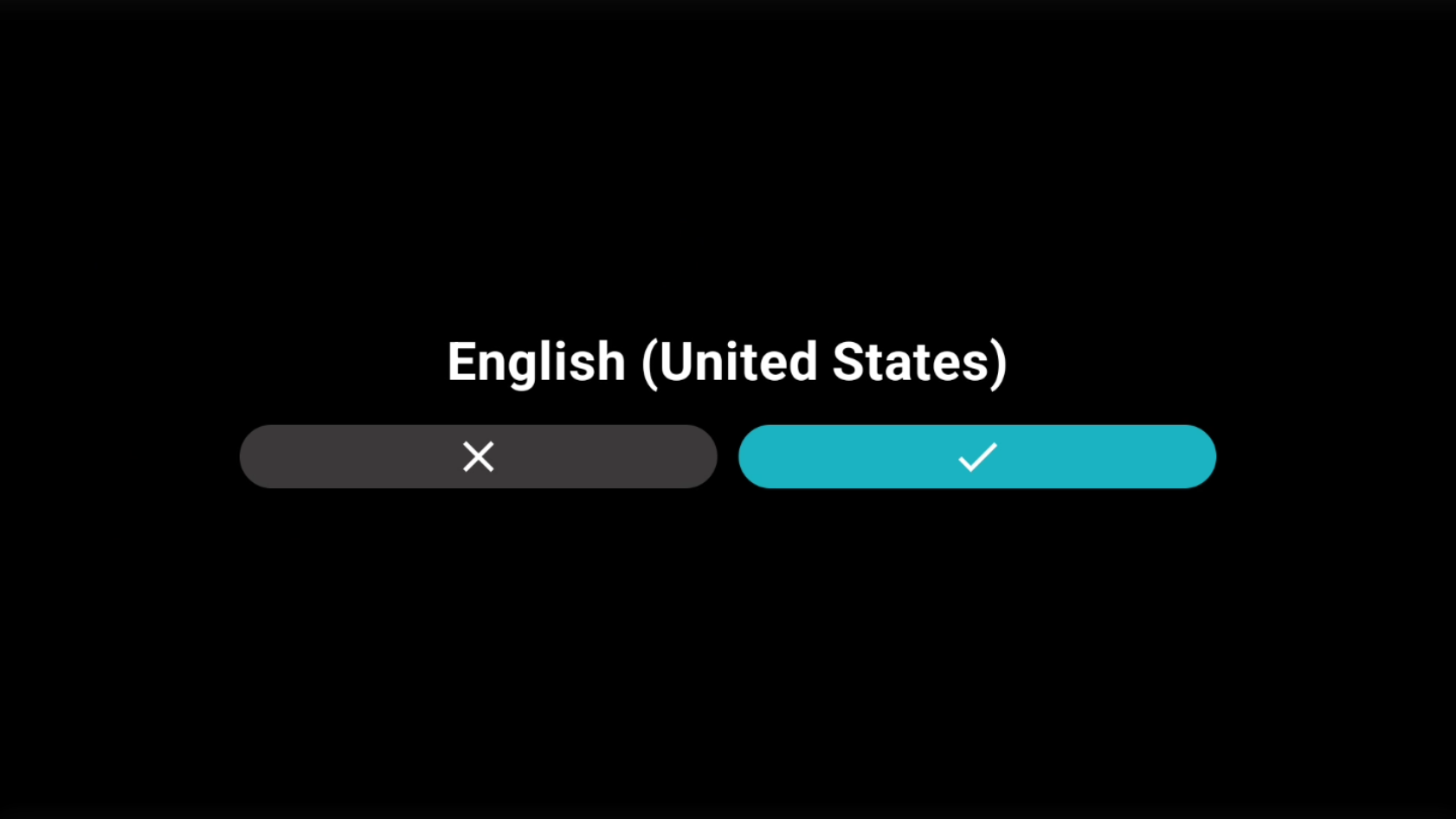 |
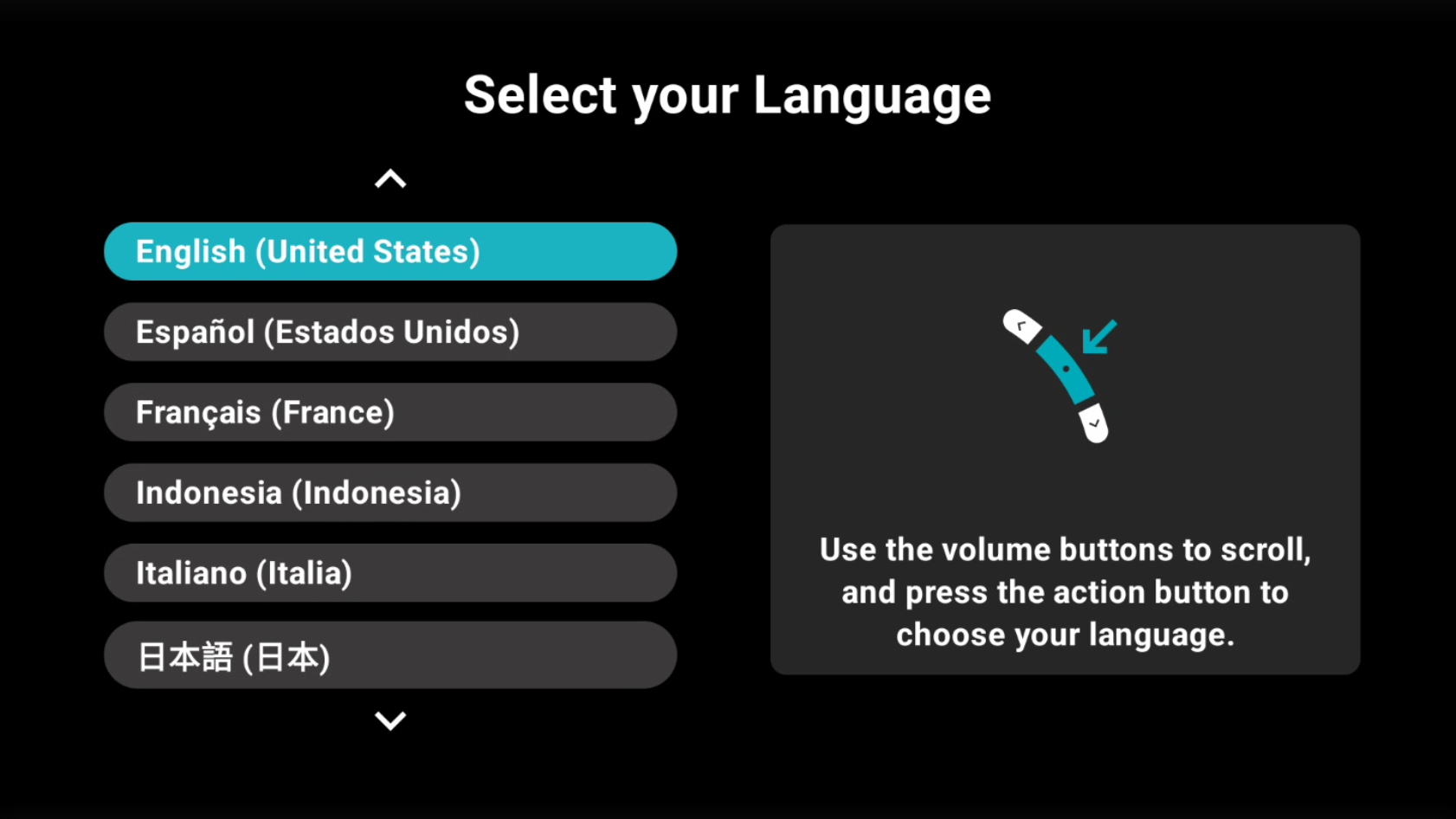
1. First, turn on the device by holding the power button for three seconds. A screen will appear with instructions to select your language. As depicted on the right use the volume buttons to navigate and action button to select. | 2. Confirm the language selection. |
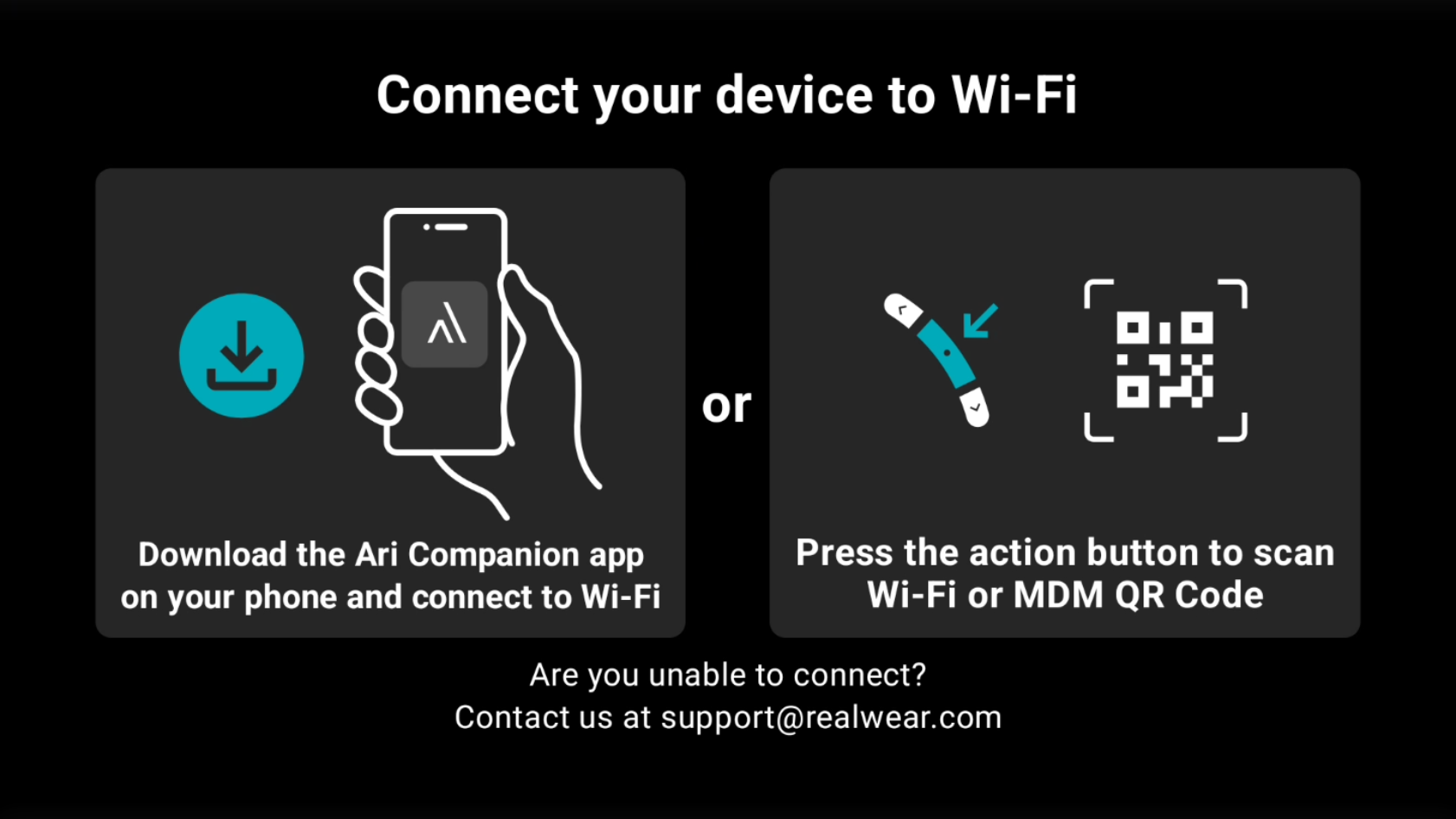 | 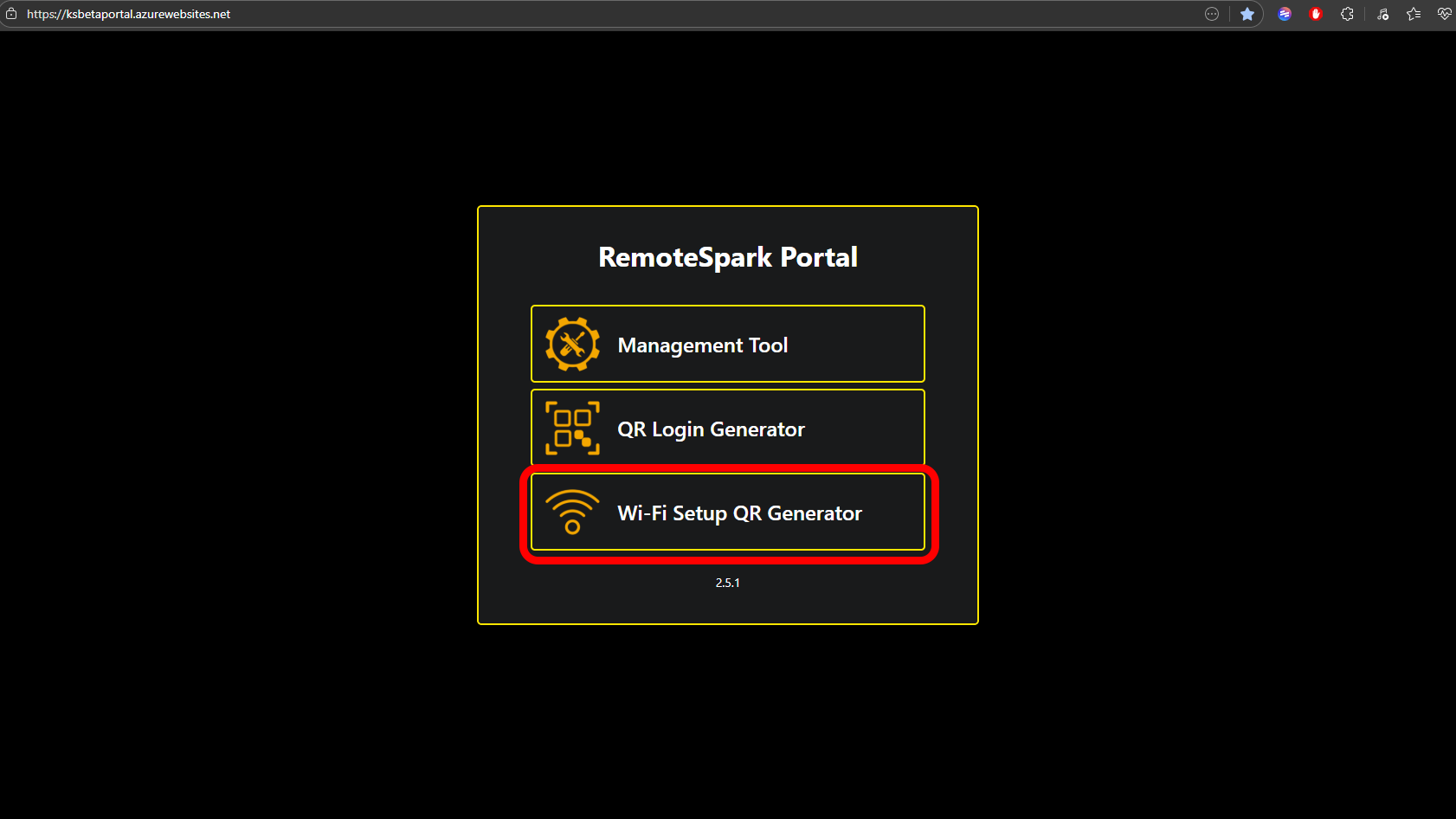 |
| 3. Next there will be two options to continue, via the app or a QR code. The rest of this guide will use the QR code, so please click on the Action Button. | 4. Open an internet browser on your phone or computer and head to RemoteSpark Portal. ksbetaportal.azurewebsites.net And select the bottom option Wi-Fi Setup QR Generator. |
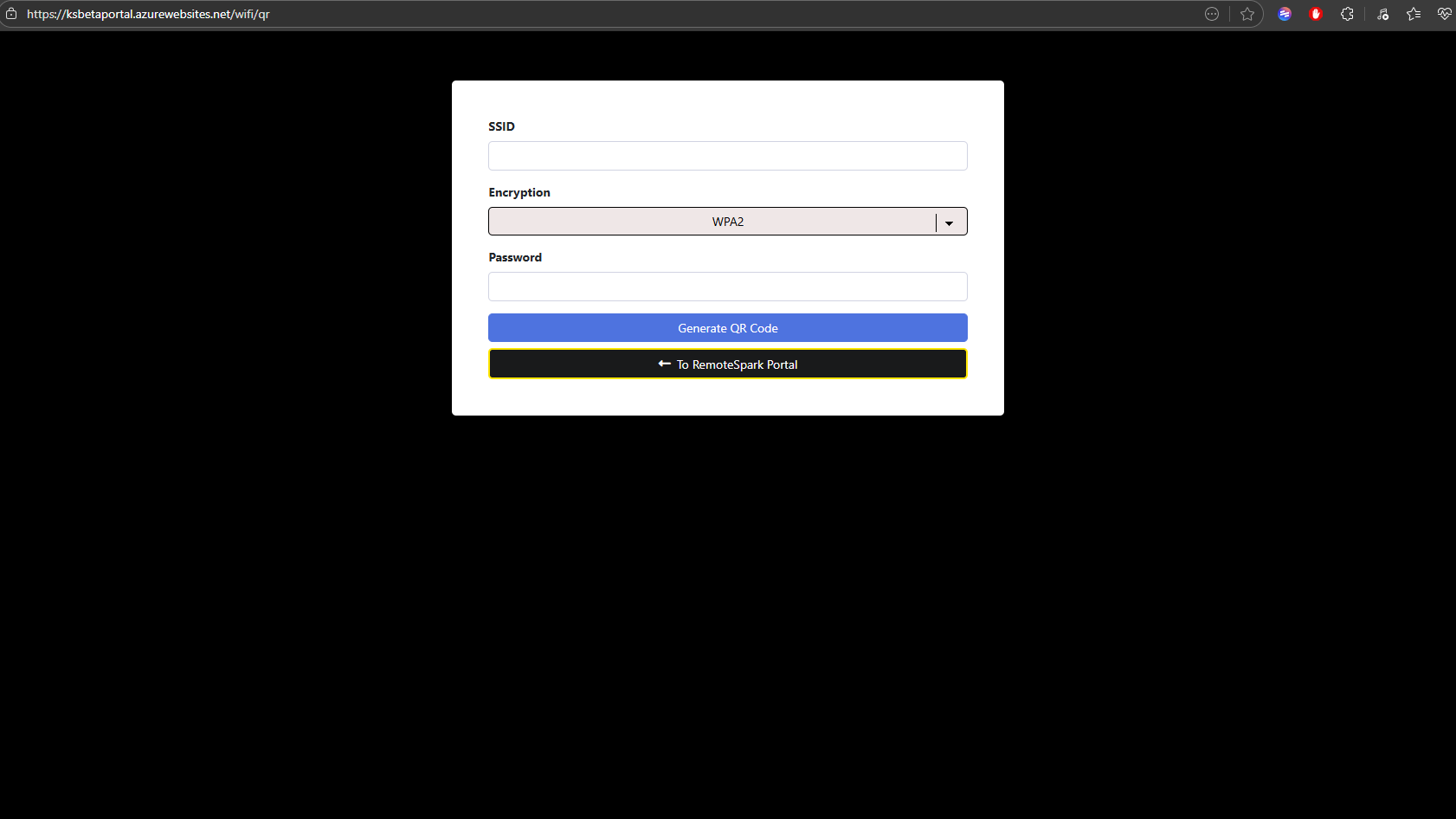 | 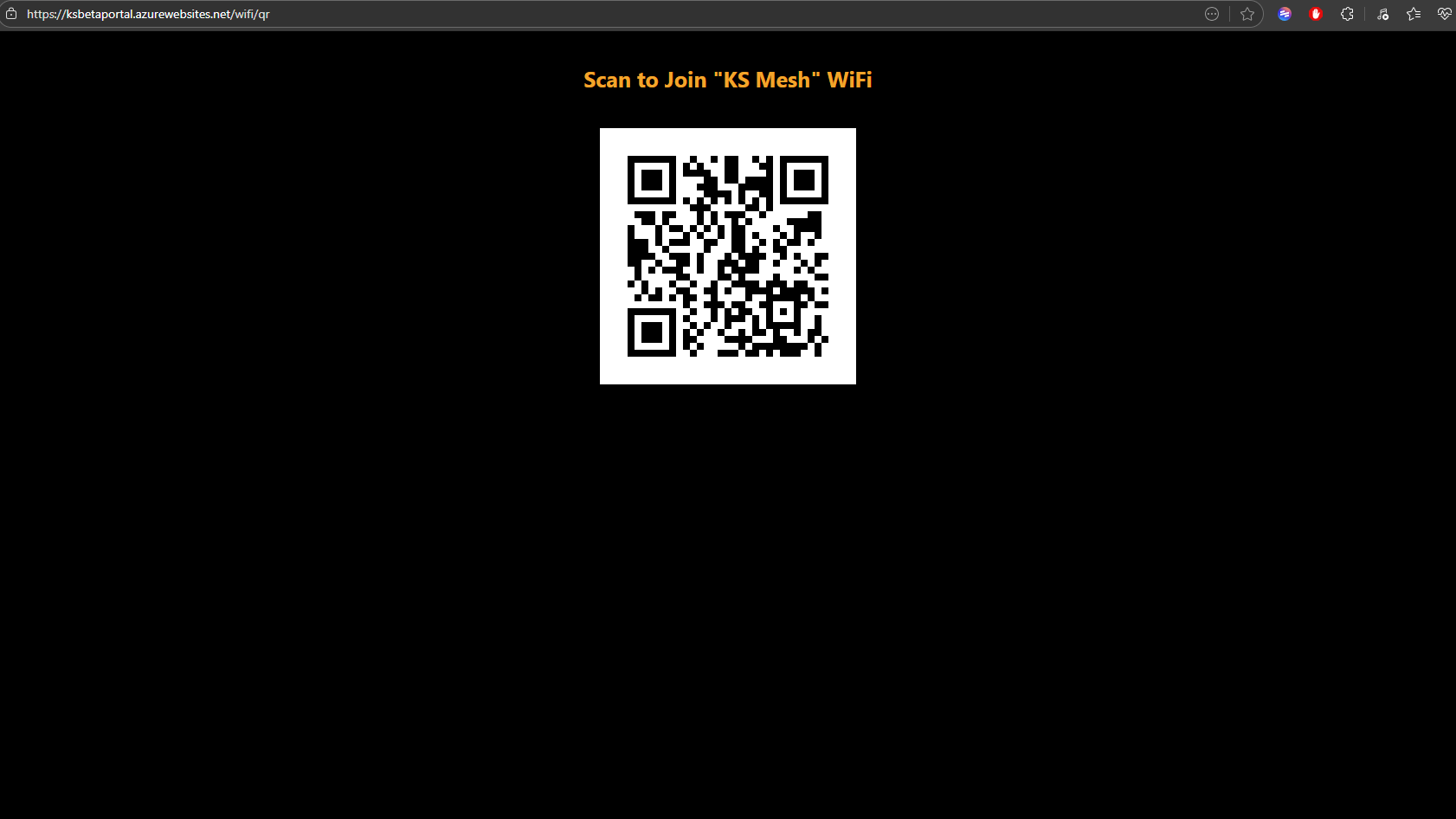 |
| 5. In the SSID field fill in your Wi-Fi name. and the password then select Generate QR Code. | 6. The screen will now show a QR code that can be scanned by the ARC 3. |
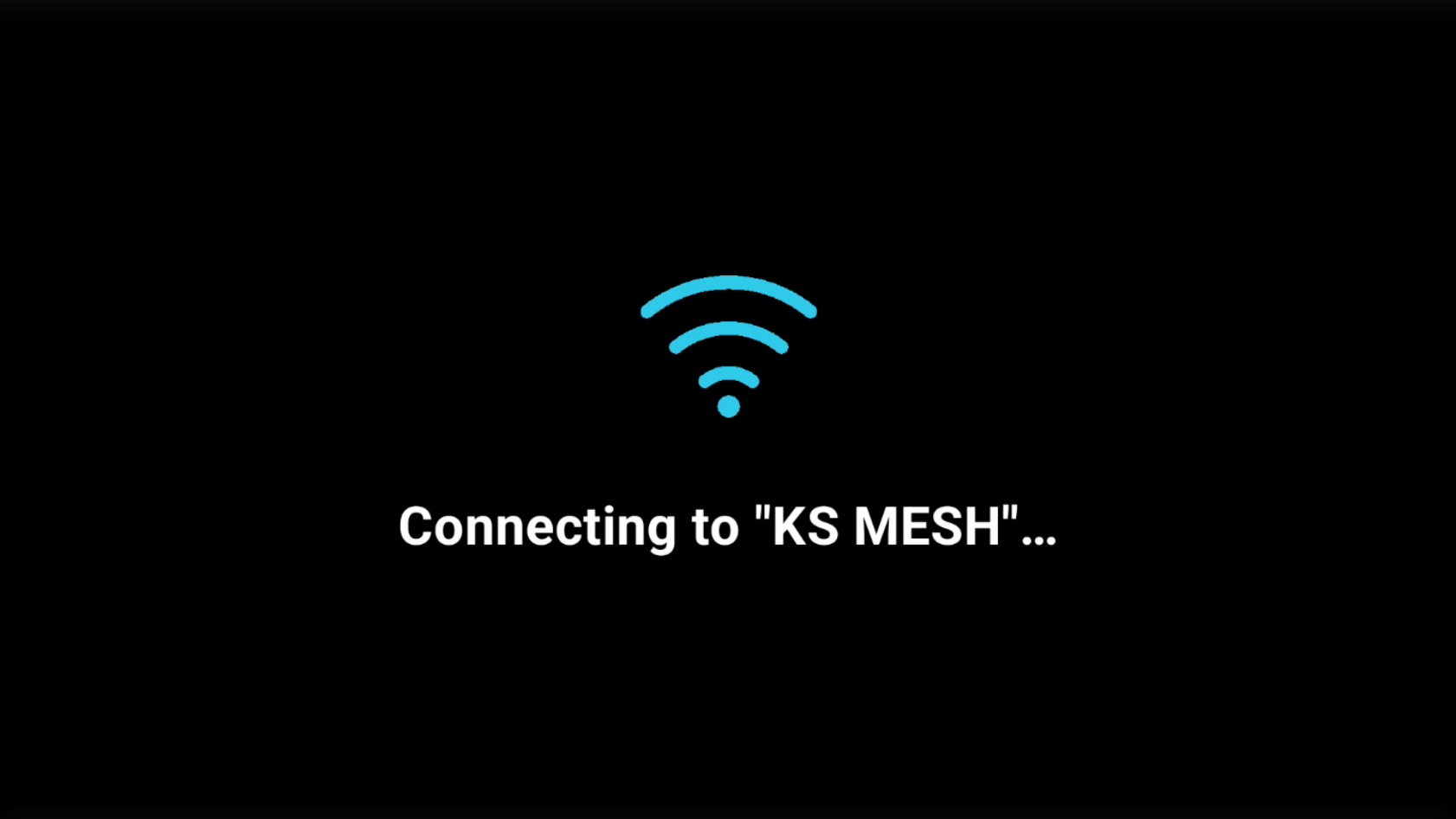 | 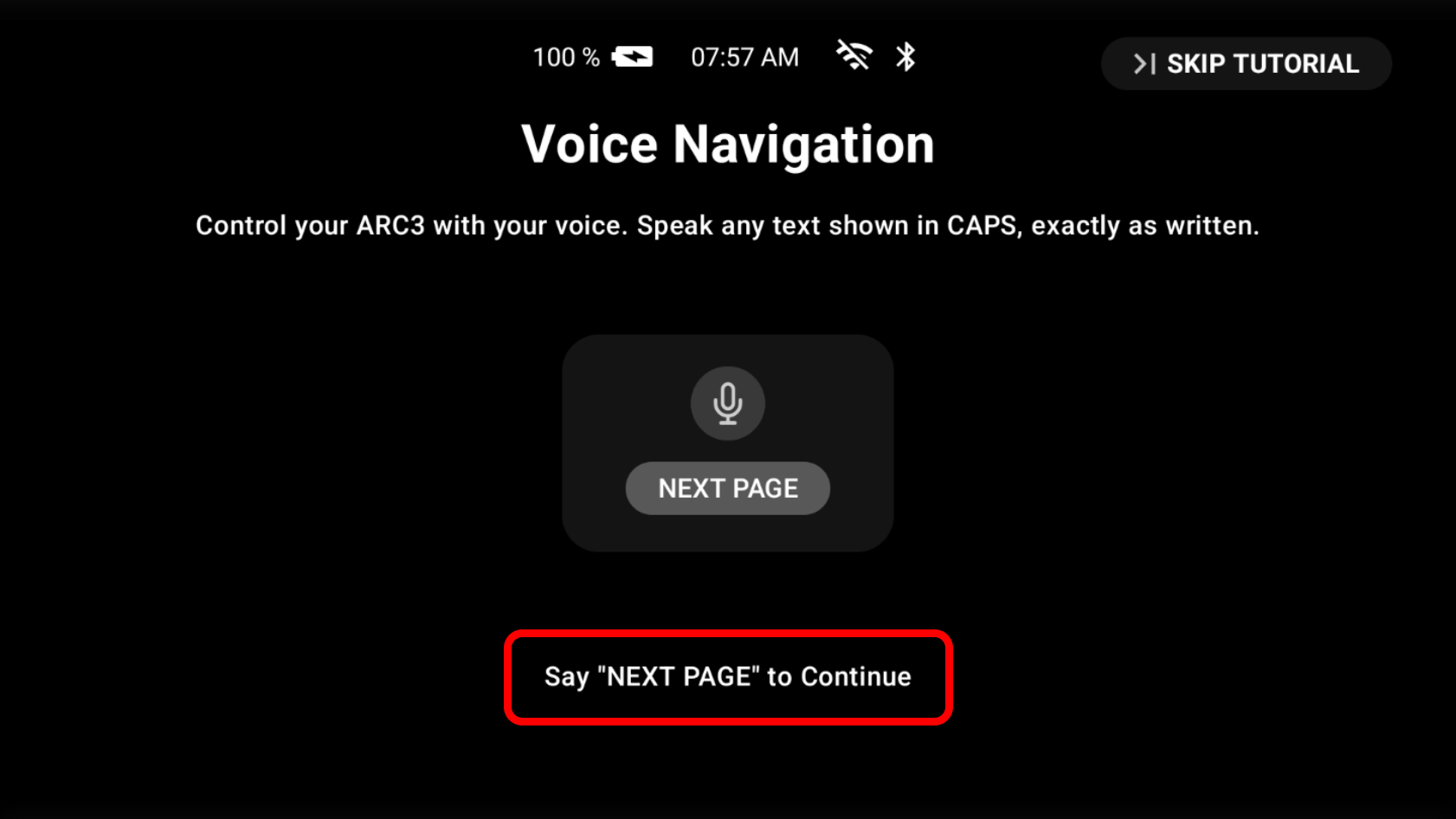 |
| 7. When scanning is complete the ARC 3 display will show connecting to “Wi-Fi name”. | 8. Once it connects to the internet the device will then walk you through setup and how to use it. Just follow the instructions outlined on each page. Say “Next Page” to continue. |
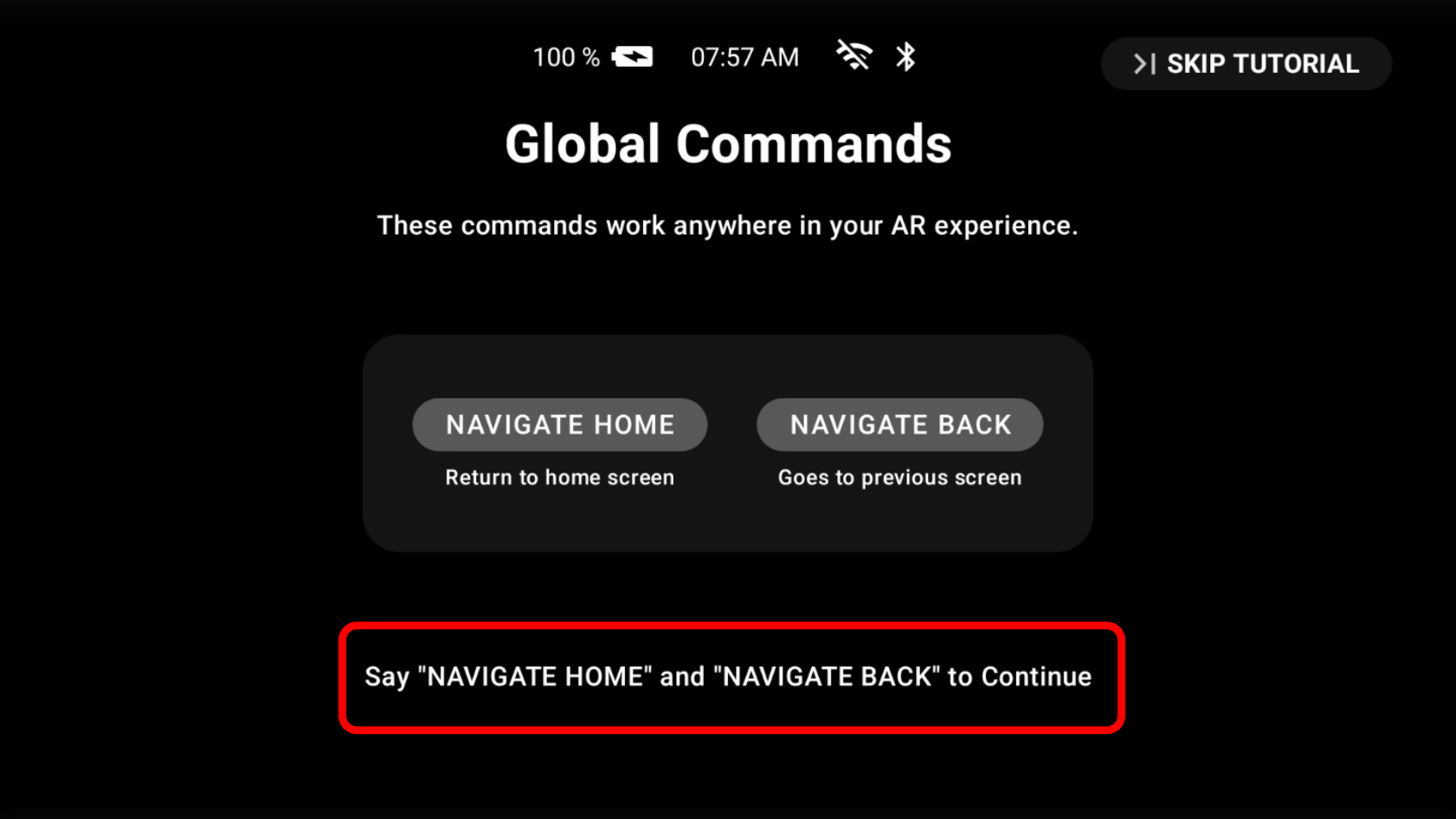 | 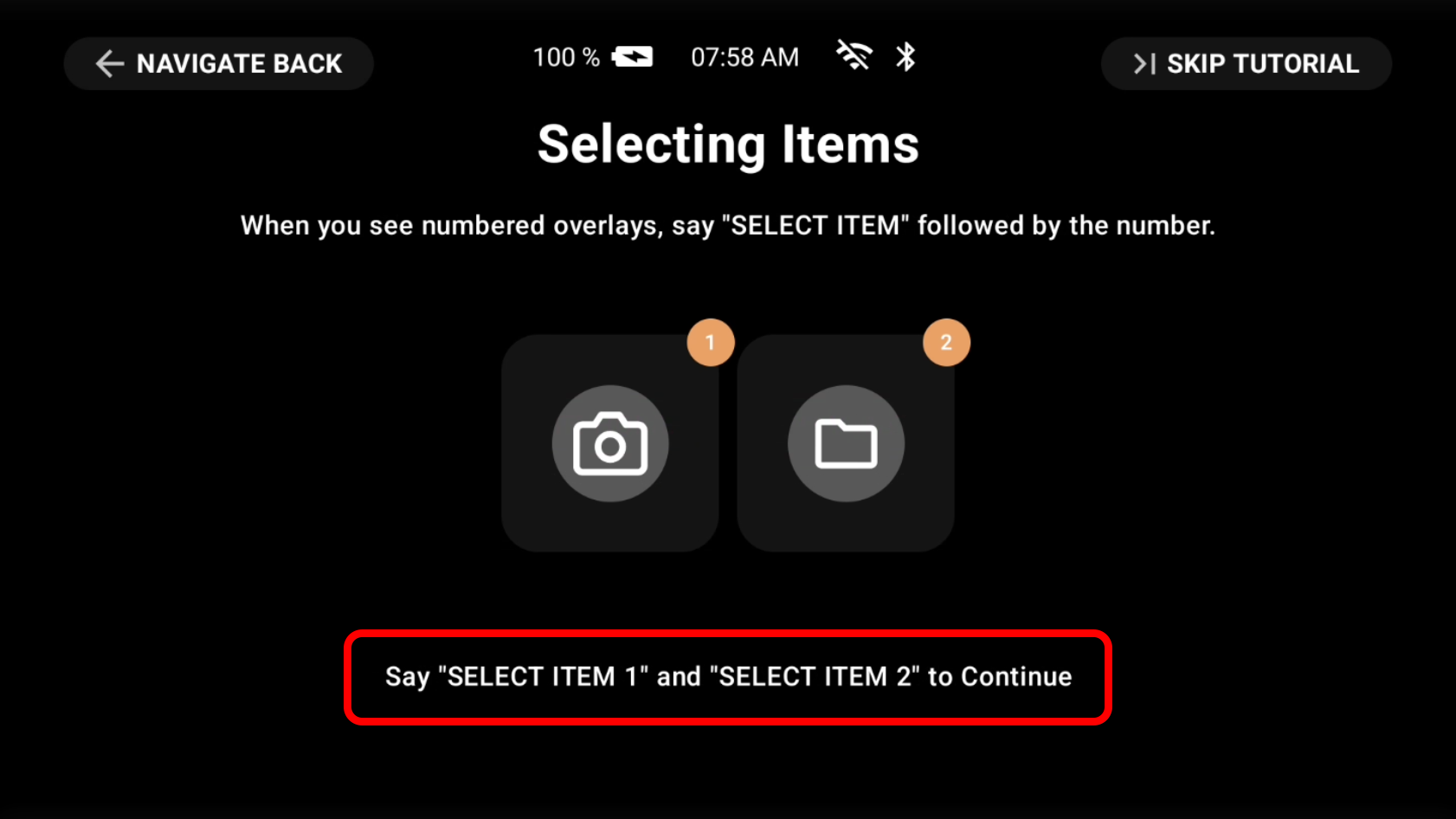 |
| 9. Say “Navigate Home” and “Navigate Back” | 10. Say “Select Item 1” and “Select Item 2”. |
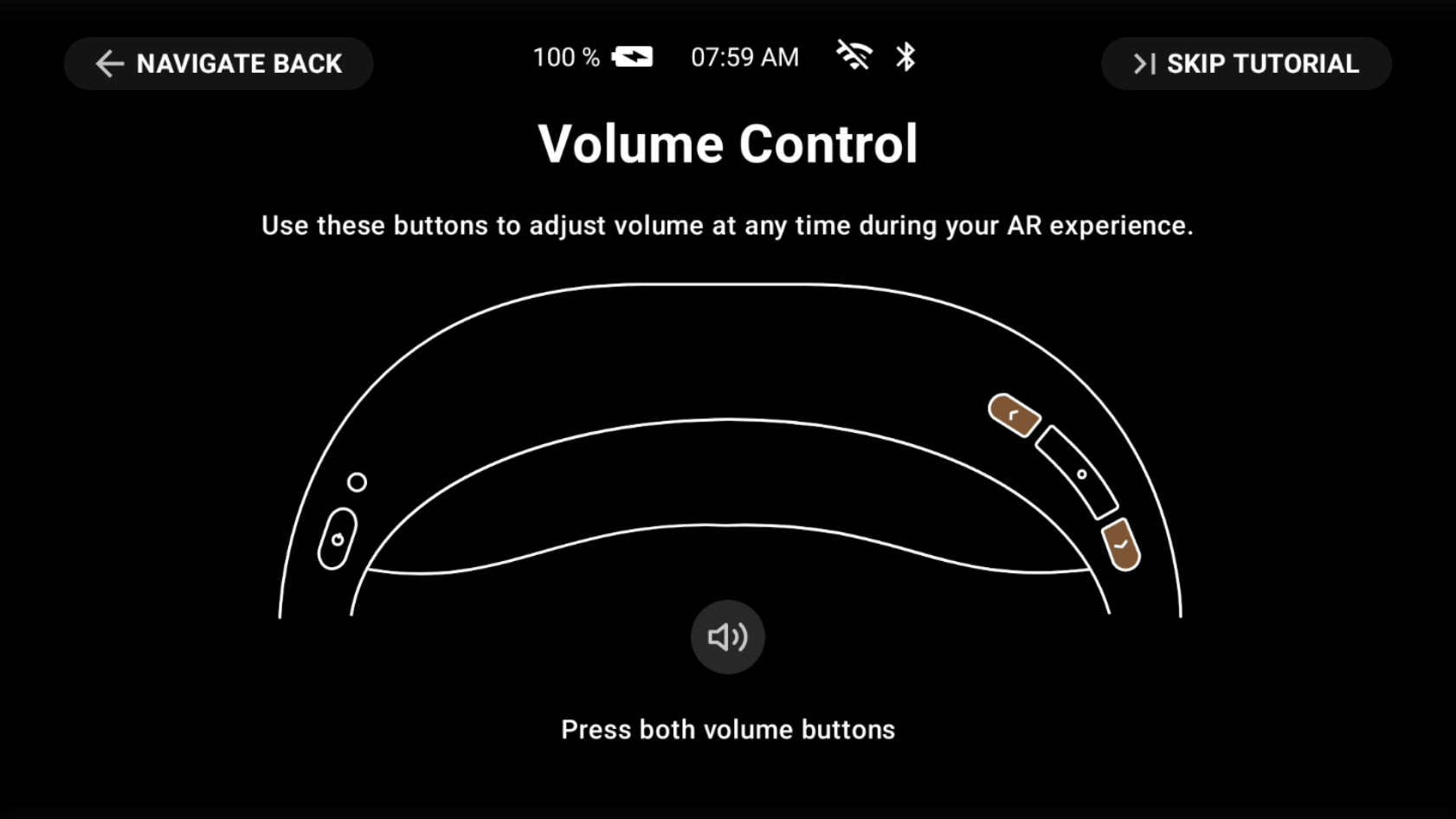 | 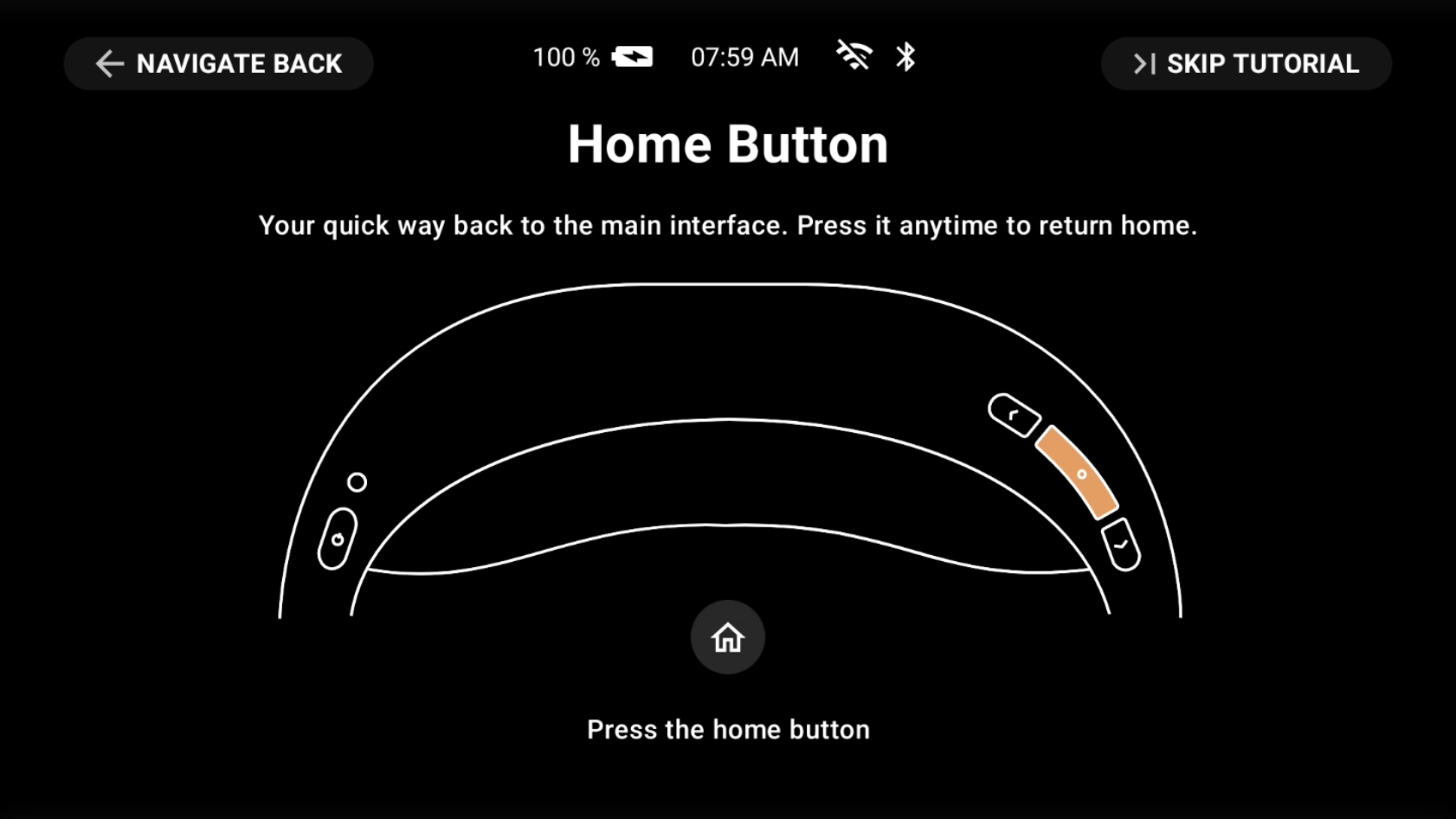 |
| 11. Press both the Volume Buttons. | 12. Press the Home/Action Button. |
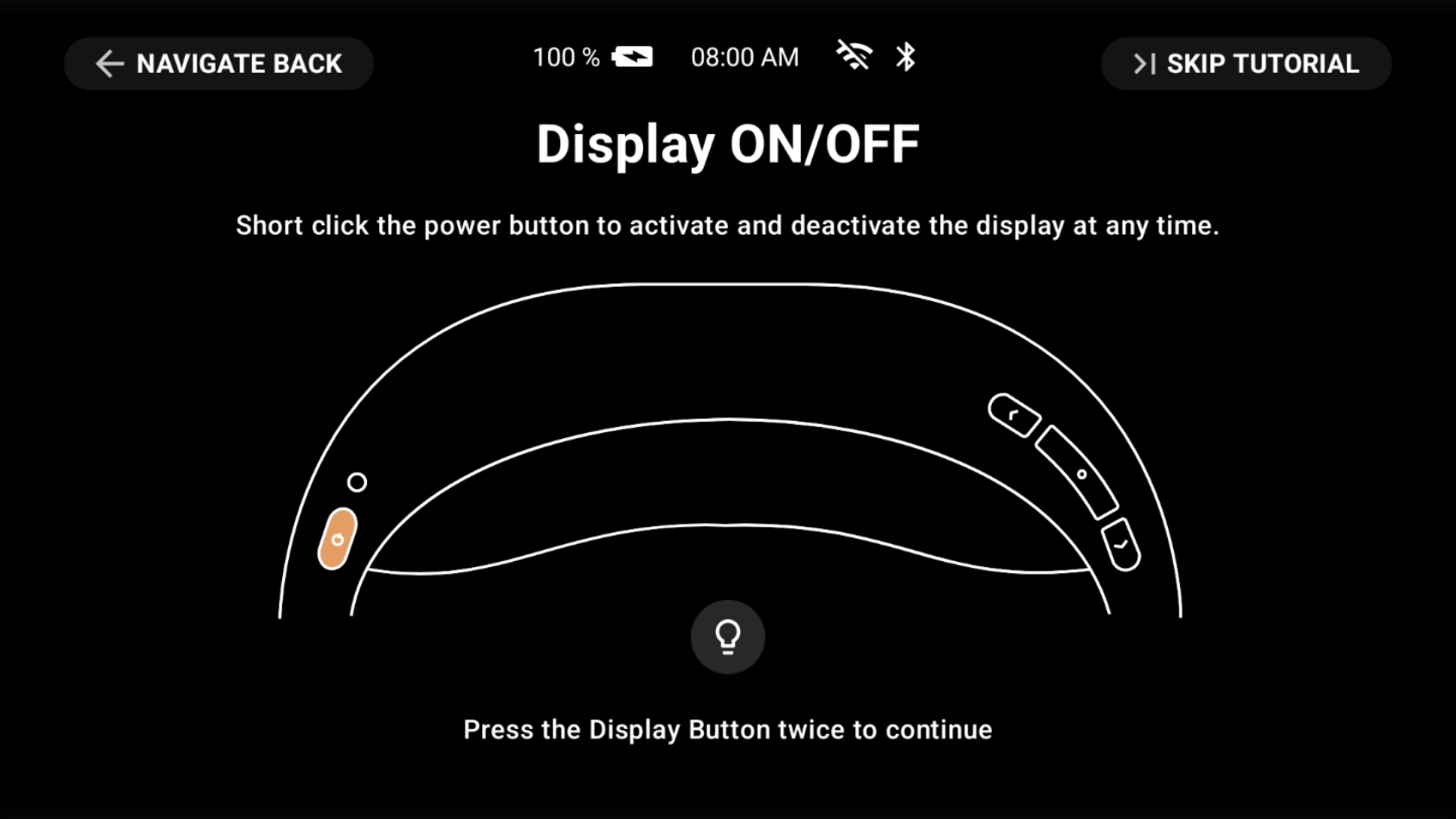 | 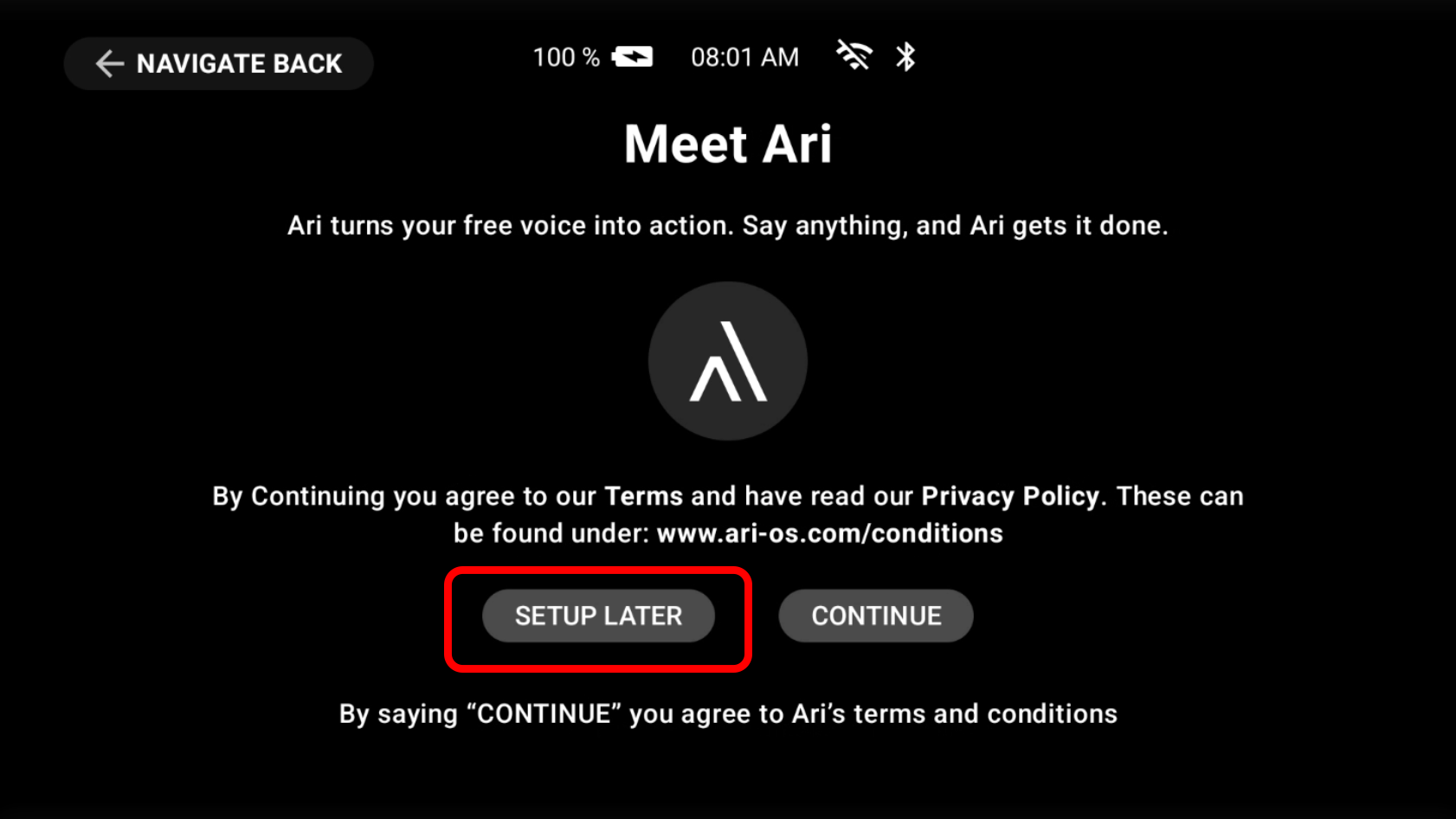 |
| 13. Press the Power/Display Button twice to hide display then bring it back. | 14. On the next page the ARC will ask to setup the Air AI. For this guide say “Setup Later”. |
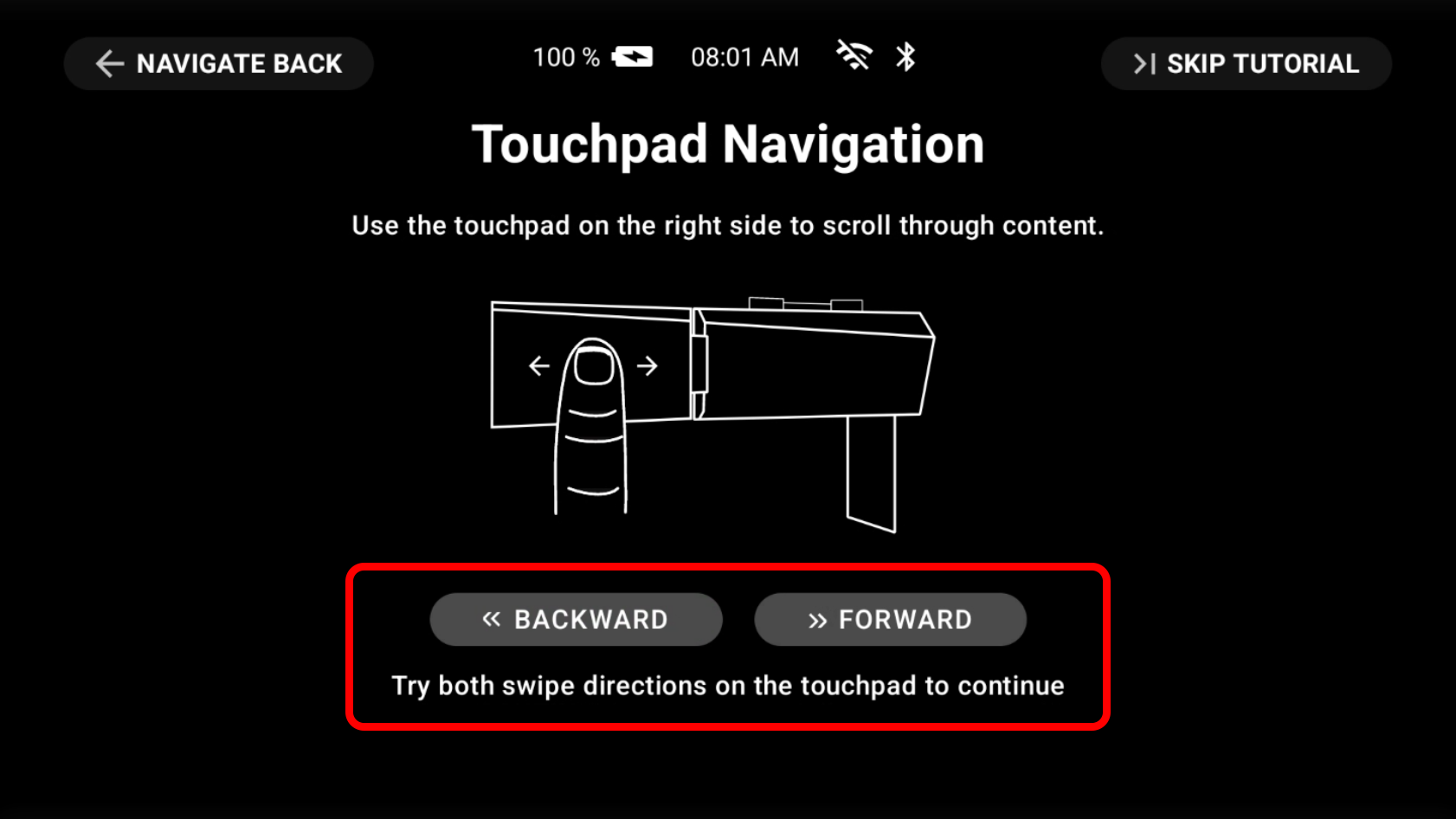 | 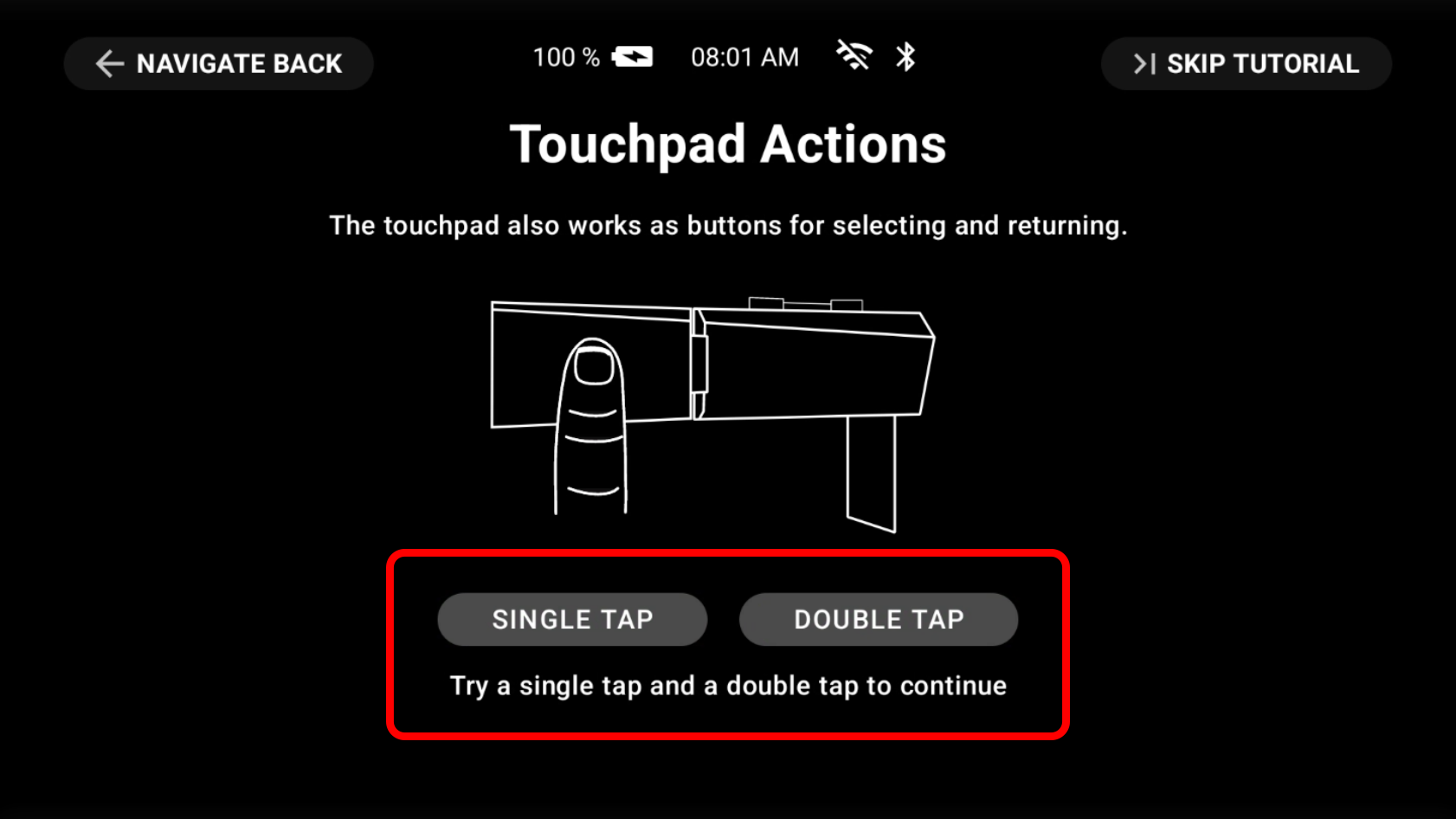 |
| 15. Swipe both Backward and Forward on the touchpad, located on the right side of the headset. | 16. On the same touch pad, Single Tap then Double Tap. The device is now set up and will show the Home Page. |
Was this article helpful?
That’s Great!
Thank you for your feedback
Sorry! We couldn't be helpful
Thank you for your feedback
Feedback sent
We appreciate your effort and will try to fix the article