Capture | RS 2D
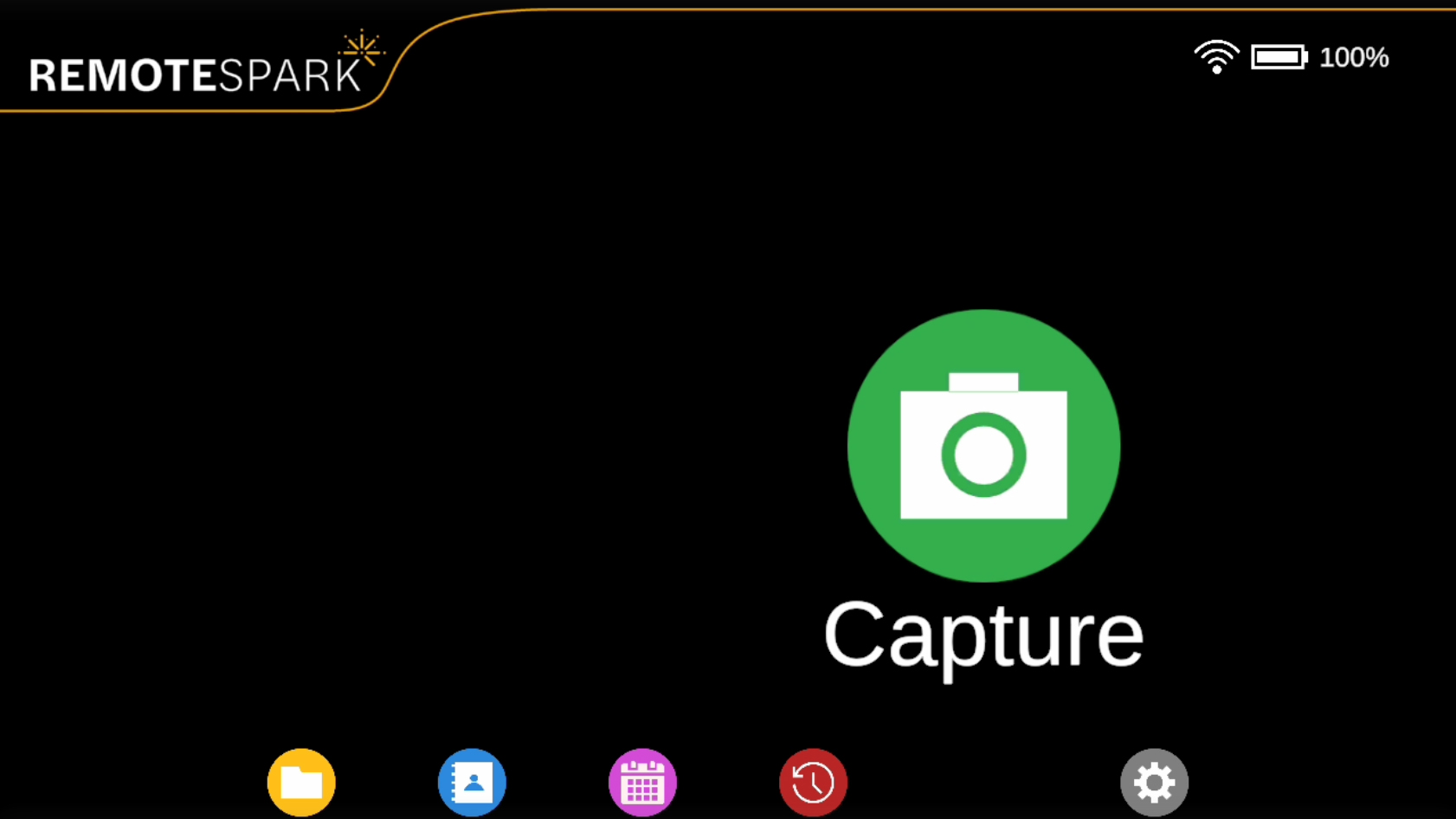 | The fourth option on the home menu is Capture. |
| Selecting this option will take the user to a new menu. The first option is Take Photo. | 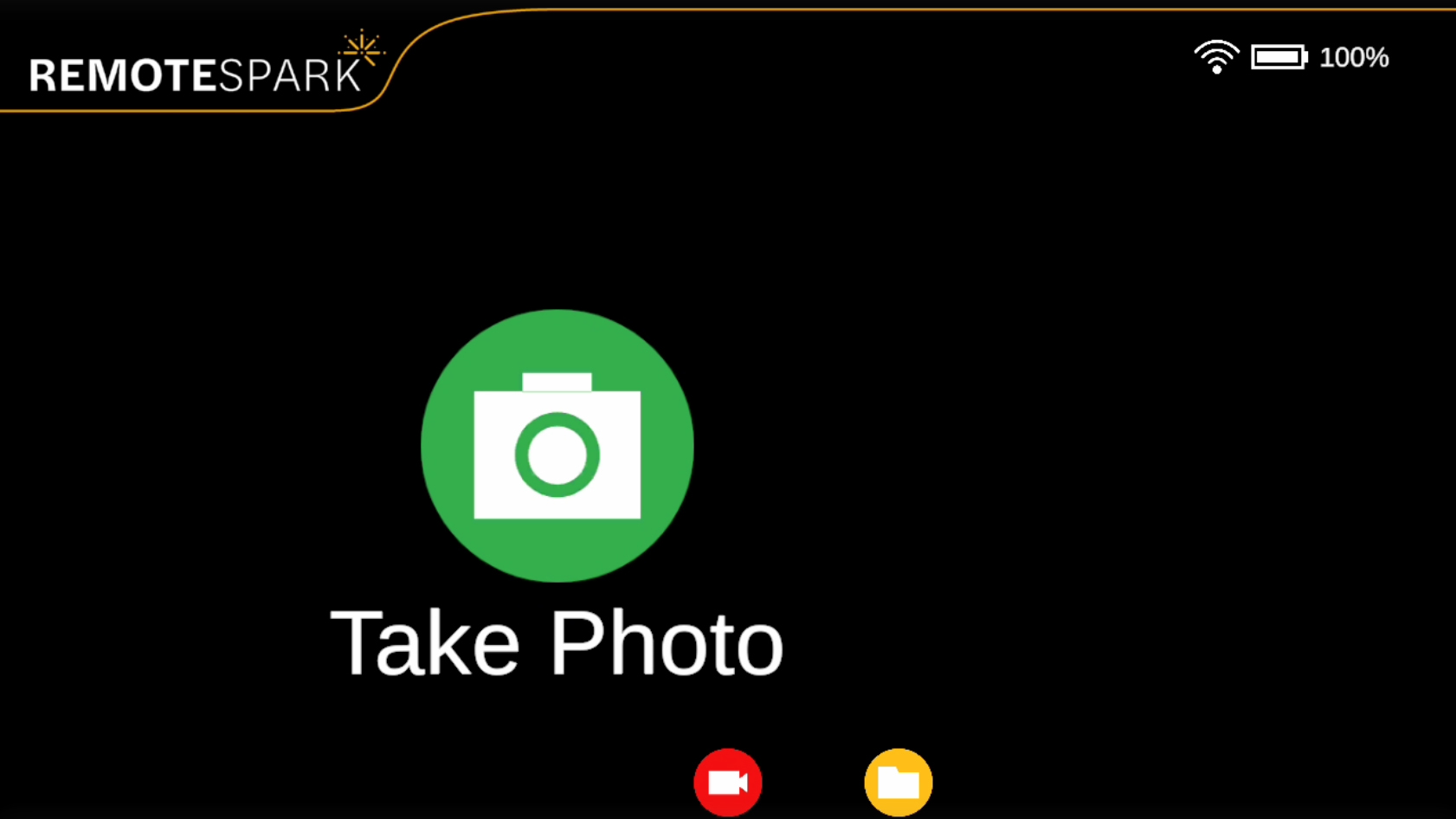 |
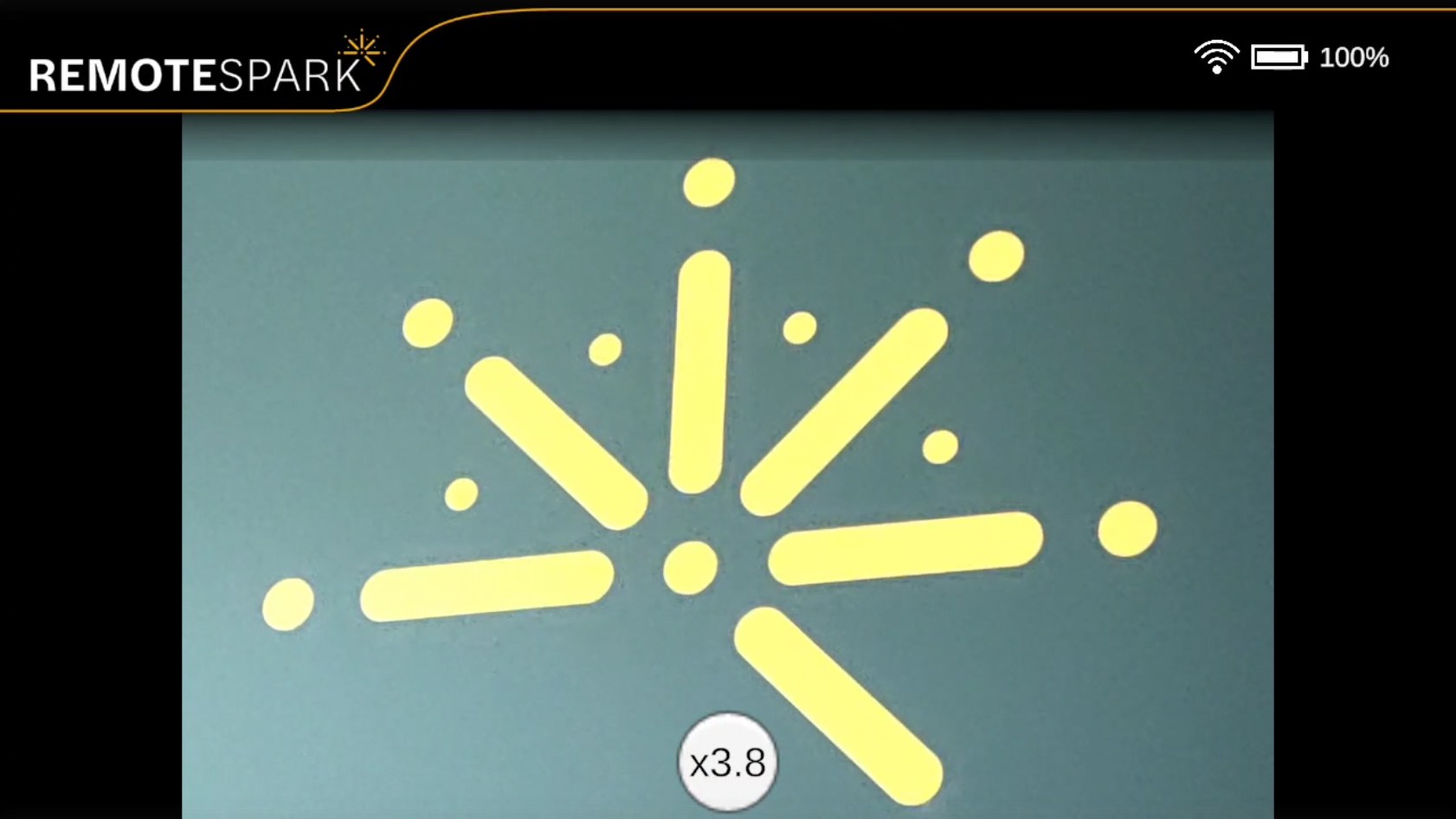 | Selecting Take Photo brings a preview of what the camera sees and users can zoom using voice commands Zoom In/Out. Selecting Take Photo while in a call will simply take a photo from the camera immediately. |
| The second option is Start Recording. | 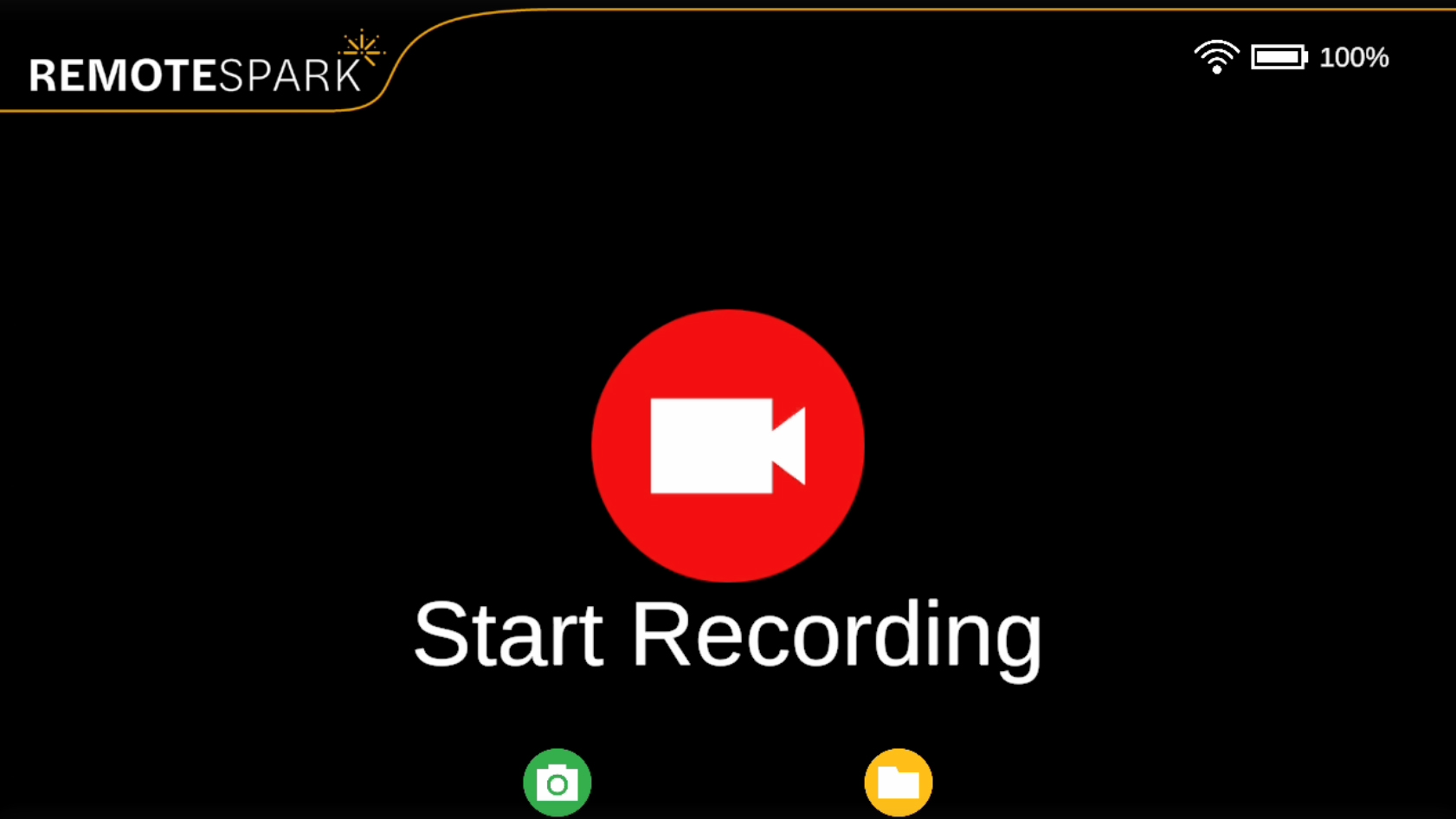 |
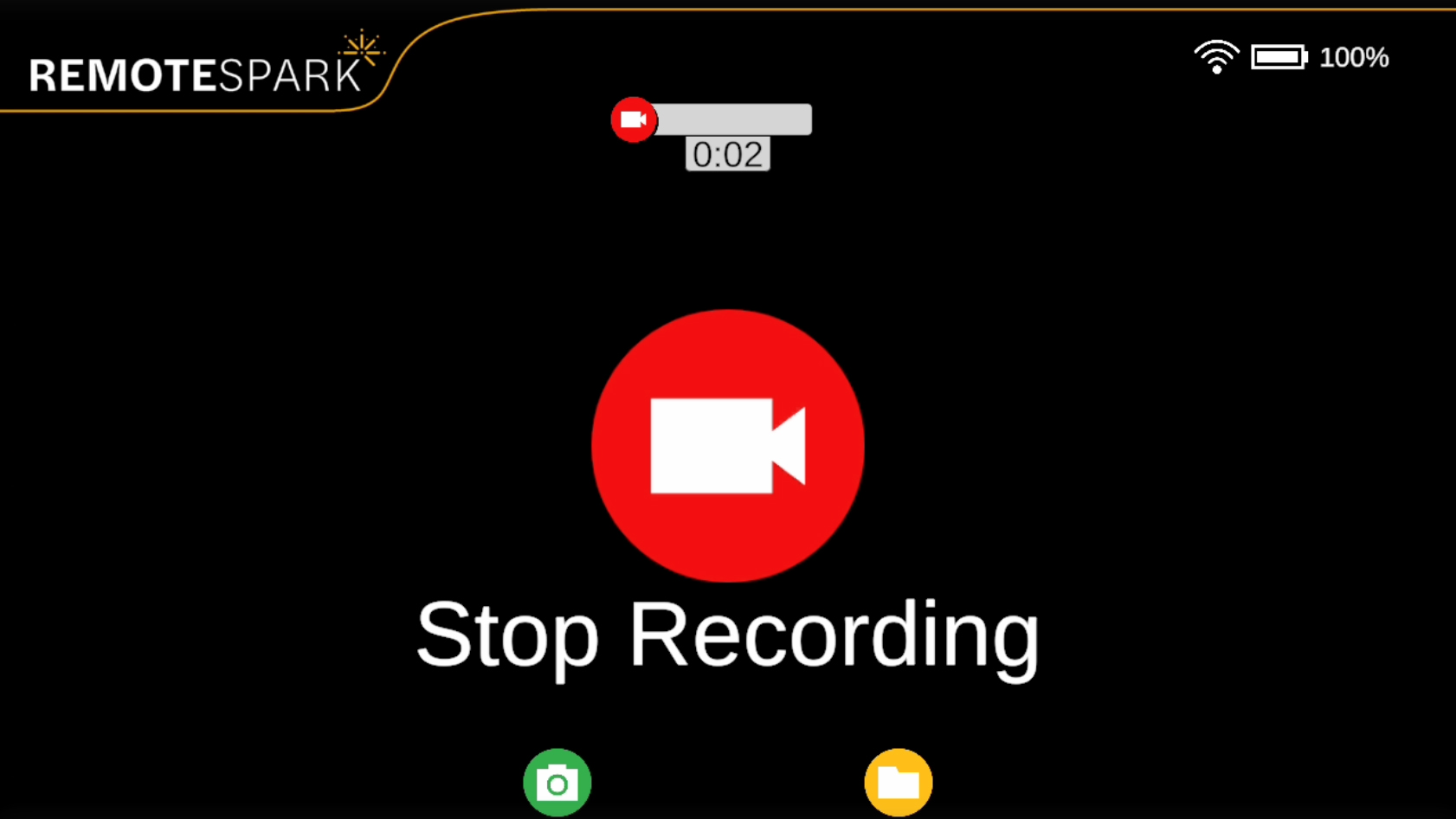 | Selecting this option will start a recording from the camera’s perspective. A timeline will apear at the top showing the length of recording. The button will then turn to Stop Recording, selecting it will stop and save the recording to the device. |
| Third option is Recordings. | 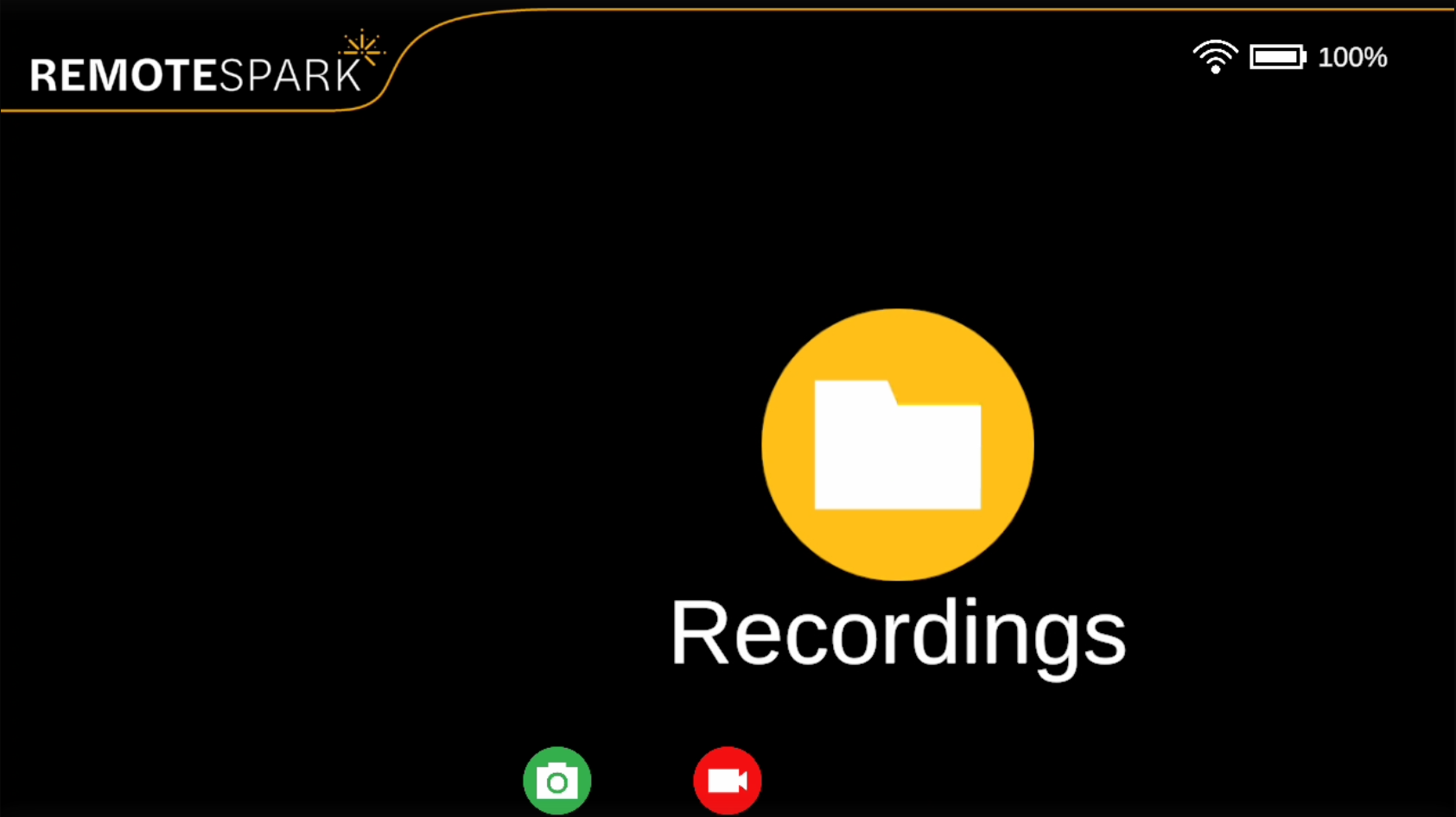 |
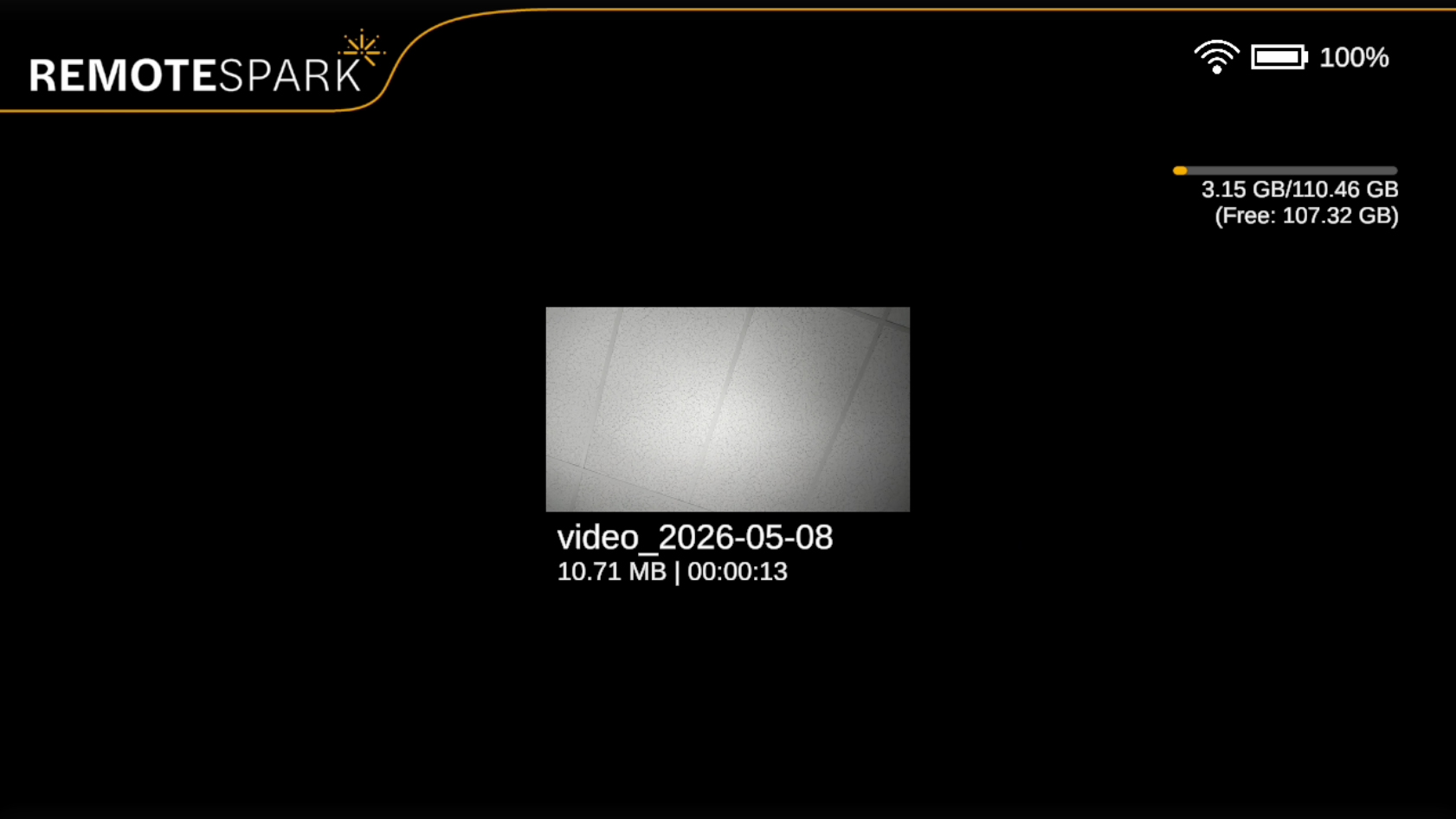 | Selecting this option will show all recordings saved to the device. The top right will also show the storage of the device. |
| Selecting a recording will bring up two options Upload and Delete. Delete will remove the clip from the device. | 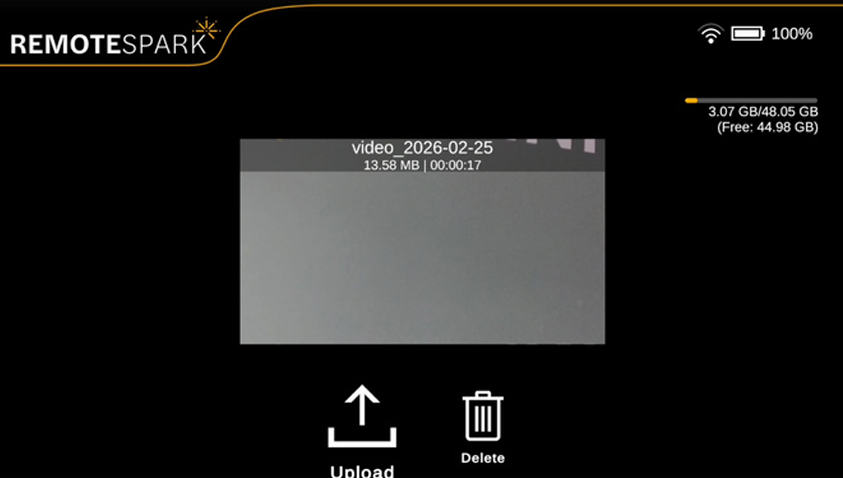 |
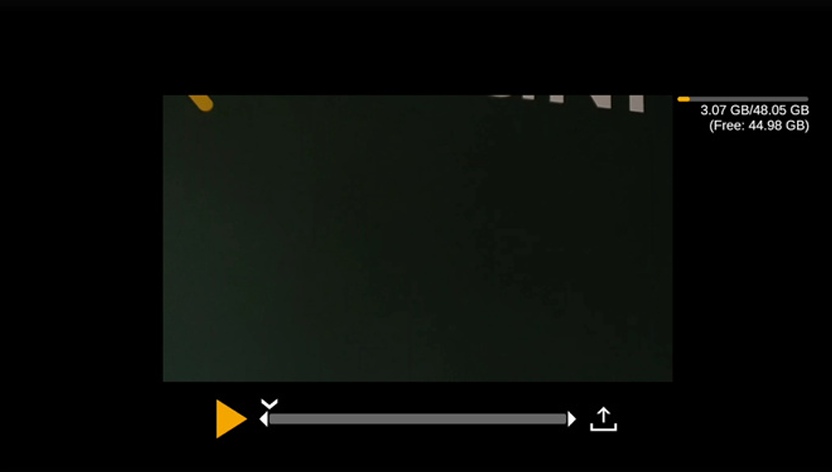 | Selecting Upload allows users to scrub through the video and upload the clip to their organization library. On some devices users can change the start and end points. |
Was this article helpful?
That’s Great!
Thank you for your feedback
Sorry! We couldn't be helpful
Thank you for your feedback
Feedback sent
We appreciate your effort and will try to fix the article