Capture Button | WEB
Once a call has been connected, the expert can select the Capture button on the top right and a content tray along the bottom will automatically open. This button will prompt the camera on the AR or MR device to take a picture from
their perspective.
Capture Button | WEB
After capturing a photo, the expert can enter annotation mode by clicking on any of the photo’s thumbnail in the content tray. To open the content tray select the bottom button.

This will open the image in annotation mode.
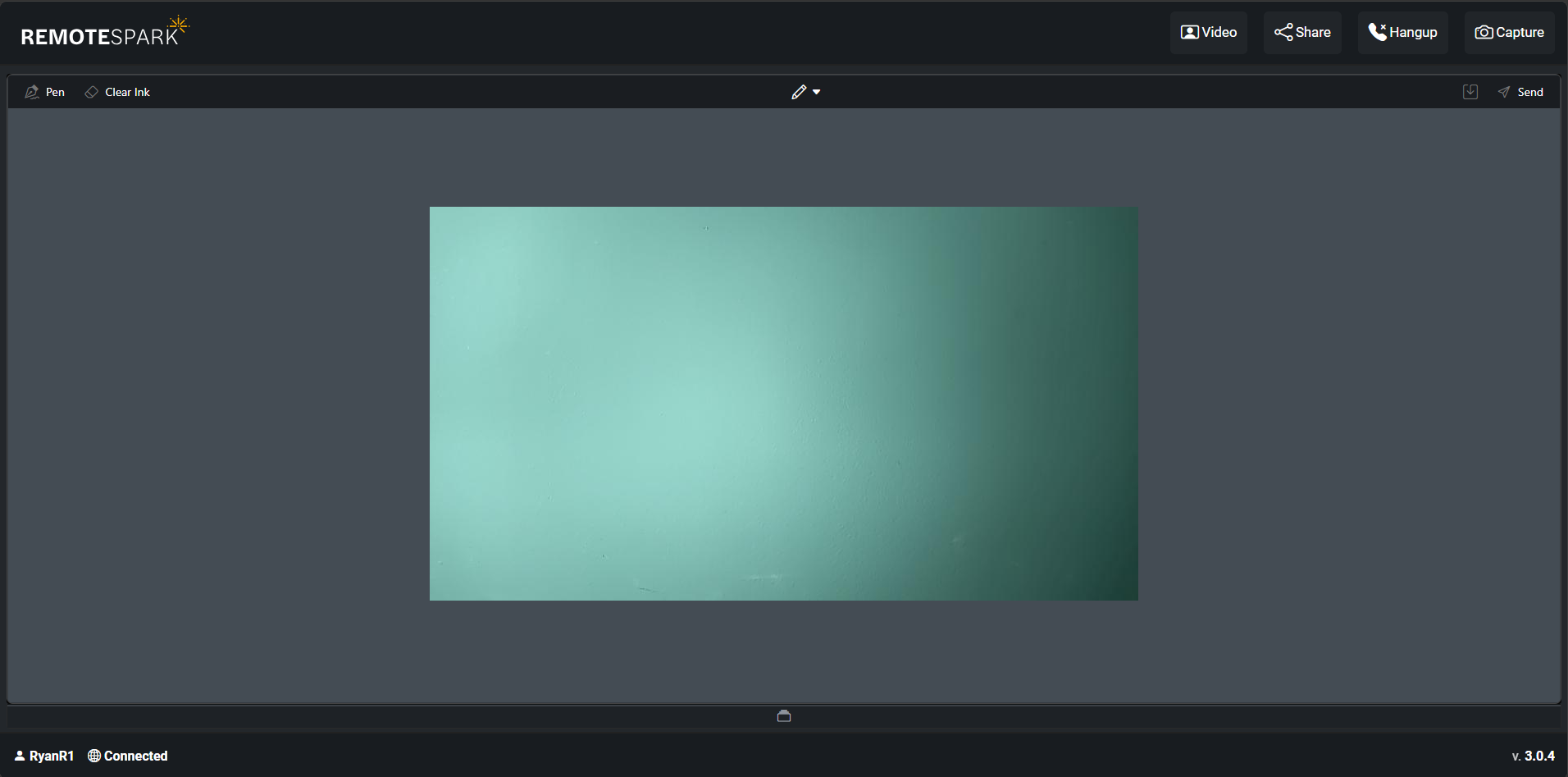
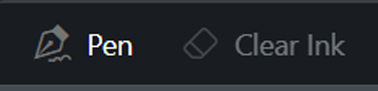
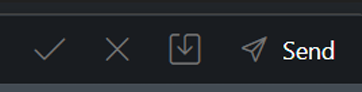
To annotate the image, click on the pen symbol in the top middle and select the desired shape or pen to draw and edit the photo. A button to quickly get back to the pen is on the left hand side along with a clear ink option that will wipe the edits. Once finished editing on the right hand side there will be an option to approve the edits ( ✓ ) or discard the edits (X), once approved it can be sent to the other user by hitting the send button.
 |  |
Was this article helpful?
That’s Great!
Thank you for your feedback
Sorry! We couldn't be helpful
Thank you for your feedback
Feedback sent
We appreciate your effort and will try to fix the article